Automatically Import Bank Statements into Google Sheets from Multiple Banks (Live Sync + PDF Backfill, No Duplicates)
Automatically Import Bank Statements into Google Sheets from Multiple Banks (Live Sync + PDF Backfill, No Duplicates)
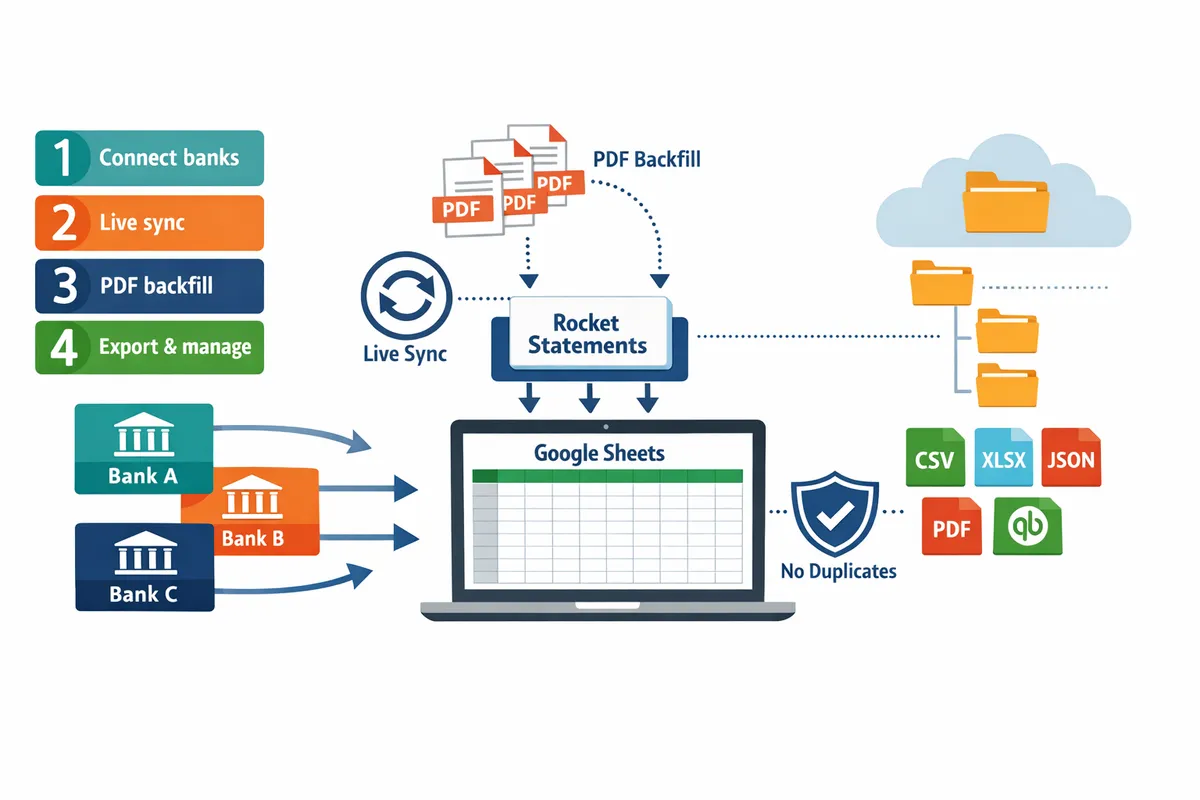
Small accounting teams often spend 8–15 hours each month consolidating bank PDFs from five or more institutions into one spreadsheet. How to automatically import statements into Google Sheets from multiple banks is a how-to guide that shows how to set up an automated, multi-bank feed that imports live bank transactions and backfills historical PDF and image statements into Google Sheets with deduplication and scheduled updates. Our website's Rocket Statements converts PDFs and image statements into spreadsheets, manages documents in cloud folders and subfolders, syncs live transaction data, and exports to CSV, Excel, JSON, PDF and QuickBooks-compatible files. Read the step-by-step setup to see which configuration removes duplicate rows and accelerates month-end.
Which method should I use to automatically import statements into Google Sheets from multiple banks?
Choose a centralized connector like Rocket Statements when you need live sync, PDF backfill, and built-in deduplication across many banks. This method reduces repeated manual steps and keeps a single source of truth for bank transactions to Google Sheets. Below are practical steps and a direct comparison to help you pick the right balance of cost, effort, and bank coverage.
Inventory accounts and define goals 📋
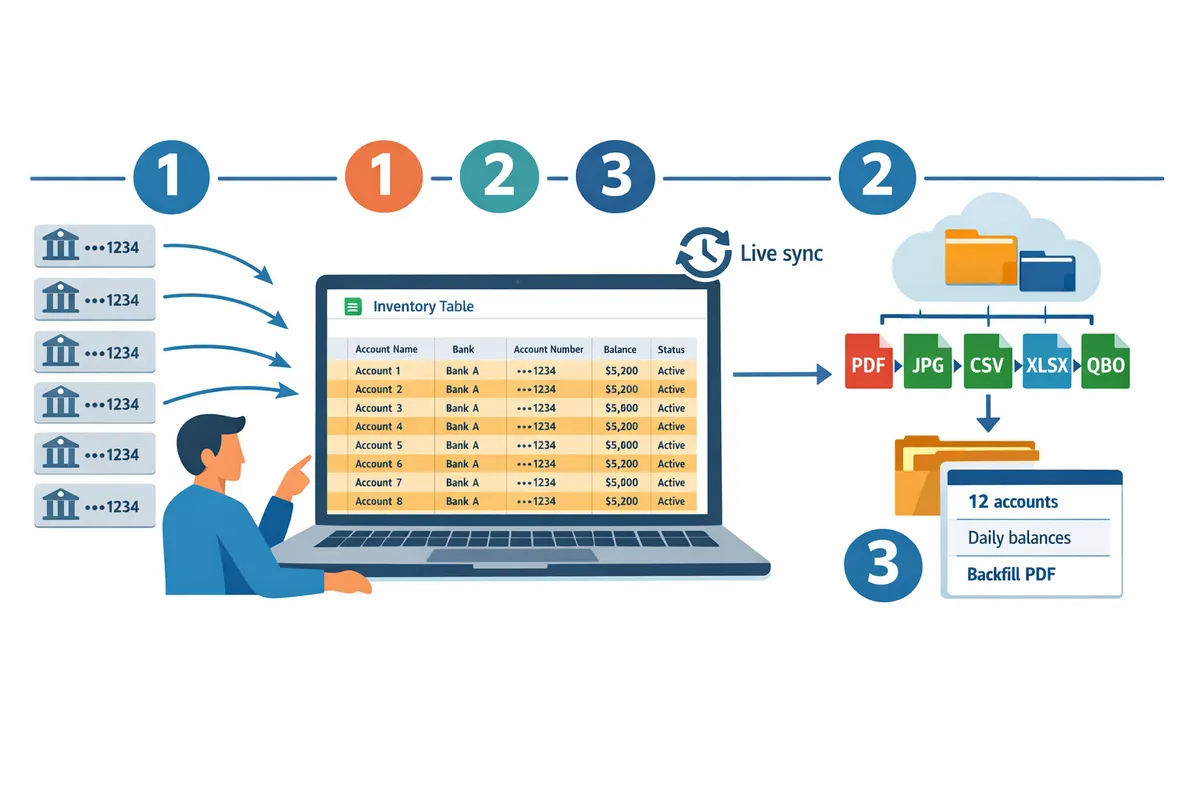
List every bank and card account, the statement formats available, and the reporting cadence before you pick a method. 1) Create a spreadsheet of every account, note whether each bank provides CSV, PDF, or an online feed, and record how often you need updated data (daily, weekly, month-end). 2) Mark accounts that require historical backfill (older PDFs or images). 3) Identify who needs access to the Sheets and what fields they require (date, post date, description, amount, running balance). Example: a small firm with 12 accounts that needs daily cash balances should prioritize live sync connections. Rocket Statements can read mixed formats and store documents in folders, so include its conversion and sync capability when you mark format availability.
What is live sync and when to use it 🔁
Live sync is a scheduled or near-real-time connection that pushes new transactions into Google Sheets so balances stay current without manual imports. Use live sync when you need daily bookkeeping, real-time cash visibility, or to automate reconciliation across multiple banks. For example, firms that reconcile daily payroll accounts or monitor cash flow across 8–15 accounts benefit from a feed that updates hourly or nightly. Rocket Statements supports live sync for accounts that expose transaction feeds and for aggregated sources, which avoids repeated CSV downloads and reduces missed transactions during busy periods.
💡 Tip: Limit connector permissions to read-only and enable two-factor authentication on all linked bank logins to reduce access risk.
Compare three approaches (table) 📊
Compare direct connectors, CSV/manual imports, and PDF-to-spreadsheet conversions by key criteria to pick the best fit for your team. The table below summarizes cost, setup time, automation level, historical backfill, bank coverage, ongoing maintenance, and best-for scenarios.
| Approach | Typical cost | Setup time | Automation level | Historical backfill | Bank coverage | Ongoing maintenance | Best for |
|---|---|---|---|---|---|---|---|
| Direct connector (centralized platform like Rocket Statements) | Subscription fee per seat or account | Hours to a day for initial setup | High. Scheduled or near-real-time sync to Sheets | Built-in PDF backfill and conversion available | Wide where aggregation or bank feeds exist | Low. One central place to manage links and deduplication | Teams needing daily cash visibility and centralized control |
| CSV / manual imports | Low to no software cost; staff time only | Minutes per import but many recurring hours | Low. Manual or scheduled script required | Manual downloads needed for history | Only banks that provide CSV exports | High. Repeated downloads, format drift, human error | Small setups with very few accounts and tight budgets |
| PDF-to-spreadsheet conversion (batch) | Per-page or per-file fees, or platform plan | Minutes to configure conversion templates | Medium. Automated conversion but needs backfill runs | Good for historical PDFs and images | Works for any bank that issues PDFs | Medium. Requires dedup rules and reconciliation checks | Offices with lots of historical PDFs and irregular feeds |
Rocket Statements combines direct connectors and PDF conversion, so you get live transaction sync plus reliable historical backfill and deduplication. For a deeper run-through of five methods and a free template, see Convert Bank Statements to Google Sheets (2026): 5 Methods Compared + Free Template.
Business consequences of a DIY approach ⚠️
Doing multi-bank imports manually usually costs staff hours, increases reconciliation errors, and raises compliance risk compared with a centralized connector. For example, frequent CSV downloads across 10 banks can add several hours per week and create missed or duplicated transactions during company close. A simple apples-to-apples example: if a bookkeeper spends 6 hours per week on downloads and fixes at $35 per hour, that is approximately $840 per month in labor; automating those tasks recovers that time for higher-value work. Rocket Statements centralizes conversion and sync so teams avoid juggling multiple bank portals, reduce duplicate rows with built-in deduplication, and shorten month-end reconciliations.
⚠️ Warning: Storing raw bank PDFs in shared, unprotected folders increases the risk of accidental data exposure and can create audit headaches. Use folders with granular access and audit logs.
Relevant how-to resources: read How to Upload PDF Bank Statements to Google Sheets in Minutes for step-by-step backfill workflows, and Introducing Rocket Statements: Your Ultimate Google Sheets Add-On for Effortless Bank Statement Imports to see how the add-on links feeds directly into Sheets.
How to set up Rocket Statements to automatically import live bank transactions and backfill PDFs into Google Sheets
Use Rocket Statements to connect bank sources, map statement fields to your sheet, enable live sync, and run a PDF backfill so transactions appear in Google Sheets without duplicates. Follow these steps in order; a typical small-business setup can be provisioned and tested in under an hour when you have account credentials and one sample PDF ready.
Step 1: Create your Rocket Statements workspace and verify access 🛠️
Create a dedicated Rocket Statements workspace and complete verification to grant secure access to bank feeds and Google Sheets. This isolates each client or business entity so data does not mix across accounts. Actionable steps:
- Sign in to Rocket Statements and select Create Workspace. Name the workspace with the client or entity (for example, 'Acme Co - Operating').
- Complete identity and business verification prompts so our platform can connect to banks and write to Google Sheets without storing raw credentials on your machine.
- Link the Google account you want the sheets written to and grant the minimal permission scope requested.
Expected outcome. You will see the workspace dashboard and a green Verified status when permissions succeed. Common failure. If Google permissions fail, revoke any prior Rocket Statements access in your Google account and retry the connect flow.
💡 Tip: Use one workspace per client to prevent accidental cross-client imports and simplify folder-level permissions.
Step 2: Connect each bank account (OAuth, open banking, or upload) 🔗
Connect banks using OAuth or open banking when available, and use secure PDF upload for banks without direct feeds so every source can feed Rocket Statements. Mapping options depend on the connection method. Concrete steps:
- In Workspace > Sources click Add Bank. Choose OAuth/open banking for banks listed, or choose Secure Upload for PDF/image statements.
- For OAuth/open banking, follow the redirect flow and confirm account selection. For Secure Upload, drag a representative PDF (most recent month) to the upload area.
- If a bank only allows CSV exports, schedule a recurring CSV ingestion and map columns during the next step.
Expected outcome. Each connected source shows as Connected or Uploaded with a sample statement available. Common failure. If an OAuth feed shows limited history, upload recent PDFs to seed historical rows immediately.
Step 3: Configure live sync, scheduling, and destination mapping ⏱️
Enable live sync for accounts with transaction feeds and map statement fields to the exact Google Sheet columns so new transactions append correctly. Field mapping ensures date, description, amount, running balance, and account id land in the right columns. Steps:
- Open a connected account, toggle Live Sync on, and set frequency (hourly, 4x/day, daily). Choose hourly only for high-volume accounts.
- In Destination Mapping select the target Google Sheet and the specific worksheet. If you do not have the sheet yet, create a blank template with columns: Date, Description, Debit, Credit, Balance, Account ID, Source Doc.
- Map each statement field to the sheet column and Save Mapping as a reusable template for that bank and layout.
Expected outcome. New transactions appear in the sheet within the chosen cadence and respect your column structure. Test. Run a 7-day sync to confirm timestamps and amounts match bank timestamps in the feed.
Step 4: Set up PDF backfill and OCR conversion for historical statements 📄
Run PDF backfill so Rocket Statements converts historical PDFs and merges rows with live transactions to create continuous history. OCR templates reduce extraction errors when statement layouts repeat. Steps:
- Select the bank source and choose Backfill > Upload or Select Stored PDFs. Pick the date range you want converted.
- Assign an OCR template or let Rocket Statements auto-detect the layout and preview parsed rows. Adjust column extraction if descriptions or balances appear misaligned.
- Start backfill and monitor the conversion queue. Converted rows arrive in your mapped Google Sheet and store a link to the original PDF in the Source Doc column.
Expected outcome. Historical transactions appear as spreadsheet rows and Rocket Statements keeps the original PDFs in cloud folders for audit. Common failure. If OCR misreads amounts, edit the template for that bank layout and reprocess only the affected files.
For a focused walkthrough of PDF imports and troubleshooting, see our guide on how to upload PDF bank statements to Google Sheets in minutes.
Step 5: Configure deduplication, reconciliation rules, and QuickBooks exports ✅
Turn on duplicate protection and matching rules so the connector skips transactions already present in Google Sheets or outgoing exports. Proper matching prevents double-counting when live sync overlaps with a PDF backfill. Steps:
- In Workspace > Settings enable Duplicate Protection and choose matching keys (Date + Amount + Account ID recommended).
- Configure reconciliation tolerances (for example, allow 1.00 currency unit variance) and set auto-tag rules for common merchant descriptors.
- Set export presets for QuickBooks or scheduled CSV/Excel deliveries so downstream bookkeeping receives consistent formats.
Expected outcome. Rocket Statements flags duplicates and prevents re-imports, and export presets maintain your QuickBooks import rules. Common failure. If you still see duplicates after a backfill, run the Reconciliation Report, mark the duplicated rows, and reprocess with stricter matching keys.
⚠️ Warning: Do not rely on only description matching for deduplication. Merchant descriptors change and cause false positives or misses.
Step 6: Test, validate, and schedule automated checks 🔍
Run a full validation cycle: backfill a representative history window, enable live sync for 48 hours, and reconcile totals against bank statements to confirm accuracy. Validation uncovers mapping or OCR issues before you rely on automated reports. Steps:
- Backfill three months of history for one account and compare monthly totals to the bank PDF totals in the Original Documents folder.
- Turn live sync on for 48 hours and verify new transactions appear with correct timestamps and Account ID tags.
- Review the Error Report and fix mapping issues, then reprocess only failed documents. Schedule daily health checks and a weekly reconciliation summary email for the workspace.
Expected outcome. You will have matching running totals and no unhandled parsing errors. Recovery path. If totals differ, export the sheet and run a quick pivot to isolate mismatched dates or amounts, then correct the OCR template.
Step 7: Use the mapping template and sample sheet to standardize multi-bank feeds 📊
Save mapping templates and a standardized sheet template so every bank feed lands in a consistent format for reporting and pivoting. Standardization saves hours when adding new banks. Steps:
- Save the mapping you used for each bank layout as Mapping Template A, B, etc., and tag templates with the bank name and statement layout.
- Use the sample sheet template (Date, Description, Debit, Credit, Balance, Account ID, Category, Source Doc) and copy it per client workspace.
- When you add a new bank, apply the nearest mapping template and run a short backfill to confirm alignment before full import.
Expected outcome. New bank feeds require only minor adjustments and category rules apply consistently across accounts. For a comparison of multiple conversion methods and a free template, see Convert Bank Statements to Google Sheets (2026): 5 Methods Compared + Free Template.
How to maintain data quality, troubleshoot sync issues, and avoid common mistakes
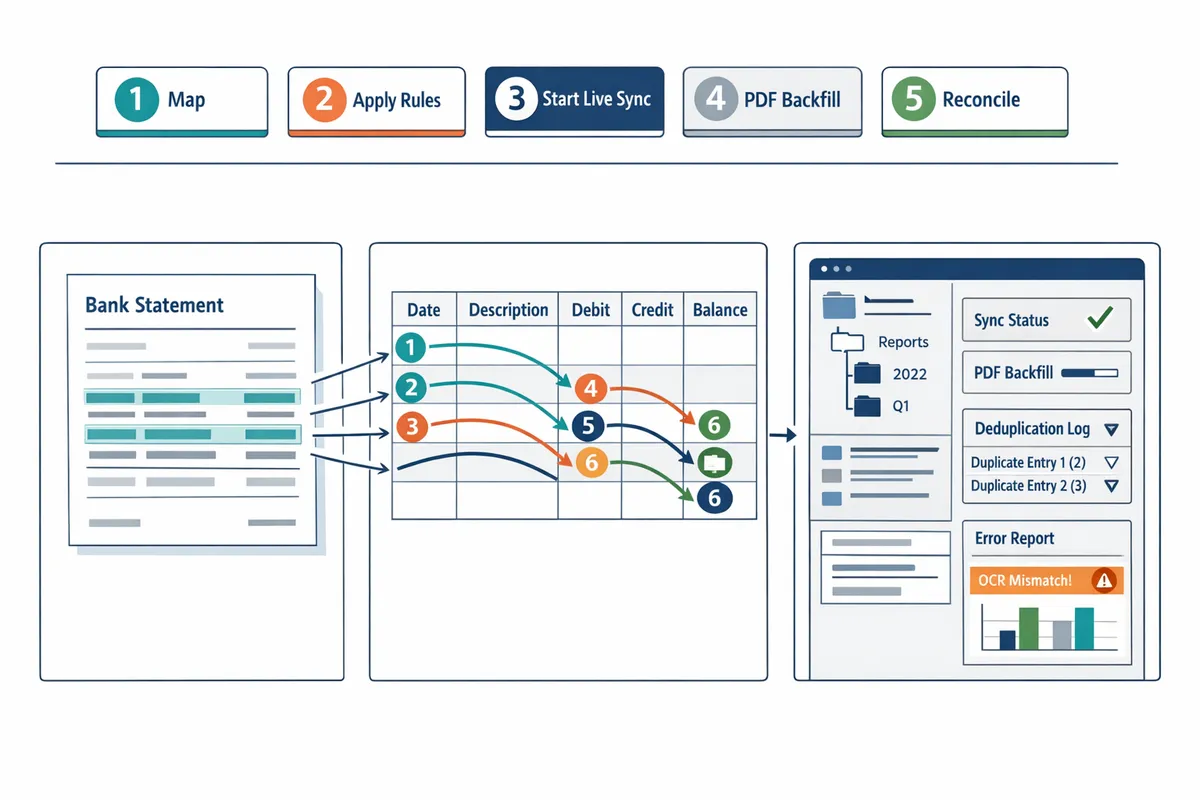
Monitor deduplication logs, reconcile key balances weekly, and use Rocket Statements' error reports to resolve failed imports and OCR mismatches. These checks catch mismapped fields, overlapping backfills, and permission problems before they escalate. Follow the routines below to keep bank transactions to Google Sheets accurate while minimizing manual work.
Daily and weekly checks to ensure data quality 📆
Run daily spot checks for missing or misclassified transactions and weekly balance reconciliations for control accounts. Perform a short daily validation that looks at three control totals: opening balance, total inflows, and total outflows for a primary account. Use conditional formatting in Sheets to flag unusually large amounts, uncategorized entries, or transactions dated outside the expected range so problems stand out without scanning every row.
- Daily: open Rocket Statements' import log and confirm 'no errors' or review any flagged rows. Expect to find and fix 1–2 minor mapping issues per week in a typical multi-bank setup.
- Weekly: reconcile the ending balance in Google Sheets to the bank's monthly statement for 3 control accounts (operating, payroll, clearing). A one-line discrepancy points to an import gap or duplicate.
💡 Tip: Use an audit column that records import source and document ID for every row. That column makes daily spot checks and later troubleshooting orders of magnitude faster.
See our guide on How to Upload PDF Bank Statements to Google Sheets in Minutes for validation tactics and example conditional formatting rules.
How to handle duplicates and overlapping backfills 🔁
Enable Rocket Statements' duplicate protection and record an import source ID on each row to prevent and resolve overlapping PDF backfills with live feeds. When a PDF backfill overlaps a live sync, identify duplicates by comparing the audit document ID and timestamp, then choose whether to keep the live row or the PDF row based on which has more complete fields (memo, category).
If duplicates appear: 1) filter by document ID to isolate affected rows, 2) export those rows to a temp sheet, 3) delete the duplicates in the main sheet, and 4) reprocess the PDF in Rocket Statements with stricter matching rules or a narrower date range. Use the Google Sheets add-on from Introducing Rocket Statements: Your Ultimate Google Sheets Add-On for Effortless Bank Statement Imports to surface import IDs directly in the sheet for fast resolution.
Security and compliance checklist 🔒
Mask account numbers in shared sheets, restrict editor access, and store raw PDFs in a private archive to limit exposure and meet audit needs. Enable two-factor authentication on both Rocket Statements and Google accounts, and review connector permissions quarterly to revoke unused or overly broad access. Rotate credentials when staff change roles and keep a separate, access-controlled folder of original PDFs so auditors can validate converted rows without exposing full account details.
⚠️ Warning: Restrict Google Sheet sharing to specific teammates and enable two-factor authentication before connecting bank feeds.
Restricting access and using audit logs reduces compliance risk while keeping bank transactions to Google Sheets accessible to the finance team.
Cost, ROI, and scaling signals 📈
Track hours saved per account and monitor maintenance time per bank to justify the connector cost and spot when manual effort creeps back up. For example, if a bookkeeper spends 6 hours a month on CSV downloads and rekeying for one bank, automating five banks saves roughly 30 hours monthly—time you can attribute to reduced billable labor or faster close cycles.
Watch for these scaling signals: error rates climbing, weekly reprocesses exceeding your SLA, or a steady increase in manual edits per sheet. When maintenance effort grows, consider moving more accounts to Rocket Statements' live feeds or request mapping support from our team. Compare alternative workflows and costs in Convert Bank Statements to Google Sheets (2026): 5 Methods Compared + Free Template to build a clear ROI case.
Recovery: reprocessing, restores, and audit trails 🔁
Document a reprocess workflow and maintain a changelog so corrected imports can be restored without duplicating rows. When a mapping or OCR error affects a date range, use Rocket Statements to re-run the conversion for just that range, then reconcile the reprocessed rows against the audit column before reinserting them.
Keep these steps in your playbook: 1) tag affected rows with a 'needs review' flag, 2) export and archive the original rows, 3) run the corrected mapping or OCR rescan in Rocket Statements, 4) compare document IDs and timestamps, and 5) replace the old rows only after a checksum or balance match. Store who performed the reprocess and why in the changelog so auditors can follow the history. See troubleshooting patterns discussed in The Art of Balancing: Google Sheets Import Via Rocket Statements for common restore examples.
Frequently Asked Questions
This FAQ answers common operational, security, and product questions about importing statements into Google Sheets from multiple banks. Each answer states a direct fact first, then gives practical details you can act on with Rocket Statements.
How accurate is OCR for bank statements? 📄
OCR accuracy depends on PDF or image quality and the statement layout. Poor scans, multi-column layouts, handwritten notes, or embedded images reduce extraction fidelity. Rocket Statements improves results by using bank-specific templates and optional manual verification during initial backfills. Run a sample backfill of 1–3 statements and check parsed rows for date, amount, and description mismatches before processing large batches. See our step-by-step guide on how to validate and correct parsed results in How to Upload PDF Bank Statements to Google Sheets in Minutes.
Can Rocket Statements automatically import live bank transactions into Google Sheets? 🔁
Yes. Rocket Statements can import live transactions when the bank exposes a transaction feed or when a secure aggregator provides access. Configure live sync in the dashboard, map destination columns in your Google Sheet, and enable the schedule you want. Expect near-real-time updates when the bank supports frequent feeds, but verify feed availability for each institution during setup. For direct add-on details, see Introducing Rocket Statements: Your Ultimate Google Sheets™ Add-On for Effortless Bank Statement Imports.
How does Rocket Statements prevent duplicate transactions? 🚫
Rocket Statements prevents duplicates by applying matching rules and a document-level audit trail before writing rows to your sheet. Matching rules compare date, amount, descriptor patterns, and source document IDs; the audit trail records whether a row came from a PDF backfill or a live feed. When overlaps occur, the platform flags potential duplicates and either blocks the write or places entries in a review queue depending on your settings. Check the deduplication log weekly and use the built-in ignore/merge options to resolve false positives. For comparison of dedupe approaches across tools, consult our roundup Convert Bank Statements to Google Sheets (2026): 5 Methods Compared + Free Template.
Which countries and banks are supported? 🌍
Supported banks vary by region and depend on open banking availability and aggregator coverage. Rocket Statements supports a broad set of institutions, but availability differs by country and by bank product (some banks only offer downloadable PDFs). Check Rocket Statements' bank coverage page or contact support to confirm specific institutions for your country. For an example of a country-specific guide, see how we handle a regional bank in How to Import Your Bank of Baroda Statements Directly Into Google Sheets.
Is my bank login information safe when I connect accounts? 🔒
Your bank login data is handled with read-only connections and secure credential handling to minimize exposure. Rocket Statements stores credentials according to industry practices and offers token-based access where possible, and you can revoke connections at any time from the dashboard. Restrict who can view or edit the Google Sheet and enable two-factor authentication for the account that manages connections.
⚠️ Warning: Restrict Google Sheet sharing to specific teammates and enable two-factor authentication before connecting bank feeds.
Can I backfill historical transactions from PDFs and merge them with live sync? ⏪
Yes. You can backfill PDFs, convert them into spreadsheet rows, and merge those rows with live sync while applying deduplication. Best practice: run a sample backfill per bank, create a bank-specific mapping template, and enable dedupe before full import. Monitor the backfill progress and reconcile account balances after the initial merge to catch mismatched fields or OCR errors. Our how-to guide covers practical field-mapping templates and troubleshooting tips at How to Upload PDF Bank Statements to Google Sheets in Minutes.
How often will live sync update my Google Sheets? ⏱️
Live sync frequency depends on the bank feed and the schedule you select; options typically include hourly, daily, or a custom cadence. Rocket Statements supports configurable schedules so you can balance the need for near-real-time data against API call limits and processing costs. Some banks only push updates once per day, so confirm the feed type during setup and choose hourly only for accounts that report transactions frequently.
Get your multi-bank feed running
Finish the setup in Rocket Statements and start a free trial to begin syncing live transactions and backfilling historical PDFs into Google Sheets. This step gives you an automated feed that reduces manual rekeying, prevents duplicates, and keeps scheduled updates running without daily intervention.
Following the steps in this guide explains how to automatically import statements into Google Sheets from multiple banks while preserving clean, reconciliation-ready rows. If you need extra help with PDF mapping or validation, see our guide on uploading PDF bank statements to Google Sheets for minute-by-minute tips and troubleshooting.
Rocket Statements is a platform that helps users save time and money by automating the process of converting their statements into spreadsheets as well as manage their documents in the cloud.
- Convert their PDF and image statements into spreadsheets
- Manage their documents in the cloud with folders and subfolders
- Sync live transactions data from bank accounts
- Transform their statements into CSV, Excel, JSON, and PDF files
- Transform their statements into QuickBooks-compatible files
Start a free trial of Rocket Statements and follow the getting-started instructions in our Google Sheets add-on post to create your first synced sheet. For broader context on bank data import approaches, review our 5-method comparison to choose the right workflow for your team.